Image Map
Showing posts with label Technology. Show all posts

Tuesday, July 29, 2025

3 More Tips for Using Google Slides in Elementary Music

I fell in love with Google Slides during distance learning and I now use them in almost every single lesson I teach as an elementary general music teacher. I shared some of my favorite tips for using Slides effectively back in 2020, which I still use all the time today, and in this post I want to share 3 more tips that I also use all the time! These will make your lessons run so much more smoothly, I promise!

1. Change Playback Speed 

If you don't already know how to embed videos in your Slides, check out my previous post on Google Slides for that- this is probably my most-used feature because I can choose specific clips from videos so I can set it to start at the exact part I want to show students, and it automatically removes ads. But did you also know you can change the playback speed of embedded YouTube videos right within the slide? Push play, click on the gear icon, select playback speed, and adjust it however you want! I will start slower when I'm having students do a particularly challenging play-along video (or if we start and I realize they aren't quite ready for that speed yet), or speed it up to add challenge if I have extra time. 

2. Mute a Video's Audio

This is another cool feature of embedded videos you may not have realized exists: you can mute the video so it plays without sound. It's funny how often this feature comes in handy because my job is literally about the sound, but I use it a lot when I want students to add their own music, sound effects, etc to a video, or if I want them to be able to watch a demonstration of a game or playing technique on loop while they practice independently. After you embed the video, click on the embedded video to select it, then open the format options (if it doesn't open automatically). Click "video playback" and you should see an option to "mute audio"- select that option to play it without sound. 

3. Link to Other Slides

Did you know you can link anything in the slide to another slide, not just a website? I use this a lot when I'm showing a bunch of different instruments within a family or from a specific culture, for example, when students are playing a game like Rhythm Battle where they go as far as they can and then go back to the beginning to start over, or when I want students to choose an answer or choose an activity. If I want to be able to quickly go back to the first slide of an activity or a "menu" slide that shows different options, I insert an arrow shape (click insert- shape- arrows) and link the arrow to the first/ menu slide (click on the arrow or whatever shape, click "insert link", then type "slide (insert slide #)"). To have several options of where you go next, like a "menu" slide where students choose from different songs/ activities they want to do, or a slide that shows several instruments that you are going to go through and show students videos of, or a slide that has a correct and incorrect answer that students choose from, I do the same thing but link individual images (of the instruments, or icons representing the options/ answers) to the corresponding slides. Then I usually add an arrow with a link back to the menu, or if it's a quiz game type thing, add an arrow with a link to the next question.

I hope you'll try out these features in your own lessons- I know they have made a huge difference for me! If you haven't already, don't forget to check out my previous post with 3 more tips for Google Slides, including using them to do "drag and drop" activities, embedding videos, and embedding audio!


Tuesday, February 14, 2023

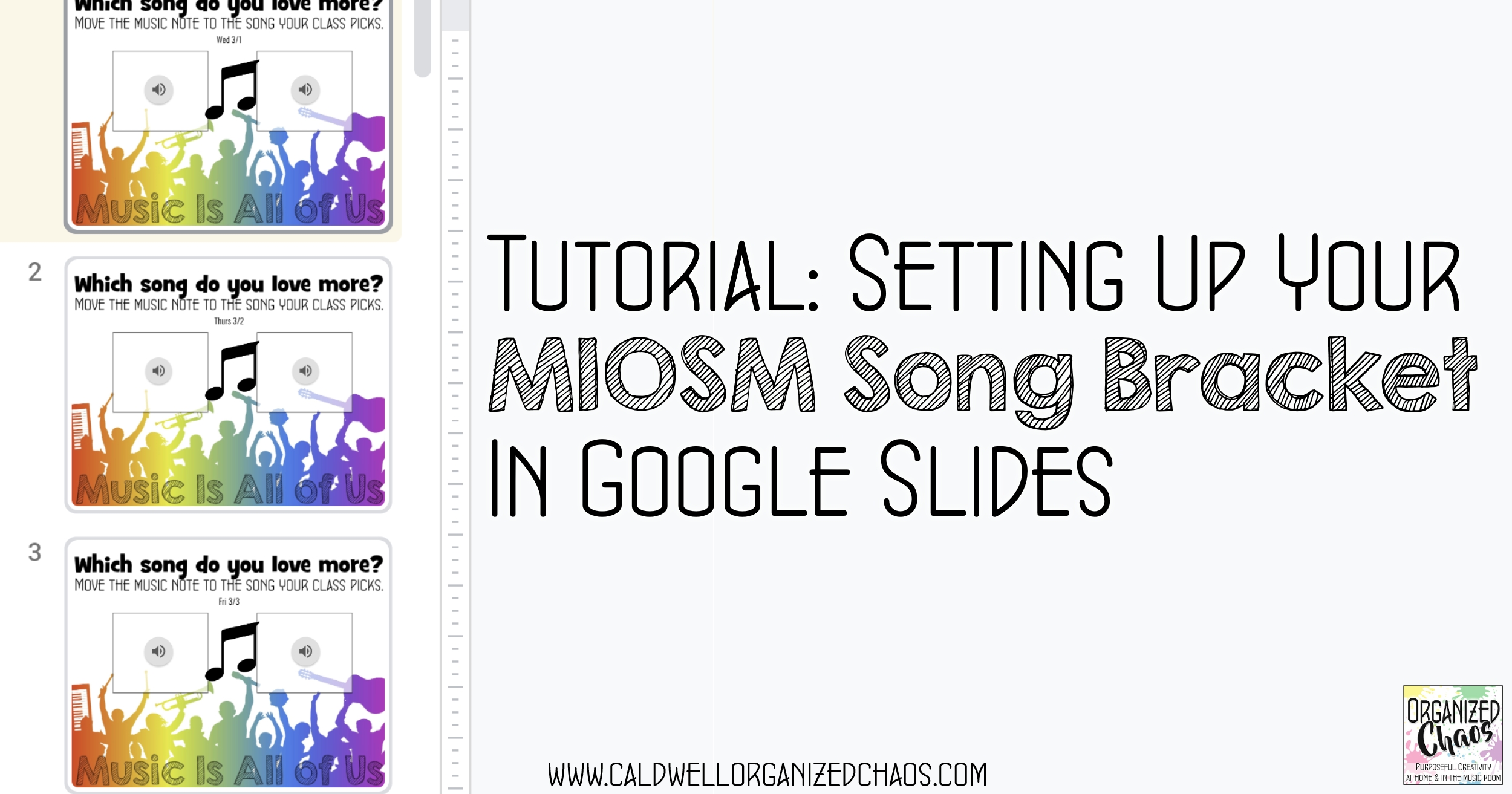
Setting Up Your MIOSM® Song Bracket in Google Slides®

I recently shared my plans for my 2023 Song Bracket for Music In Our Schools Month (MIOSM®). This has become one of my favorite school traditions and I can't wait to get started again in March! The last few years I have set up the audio files and voting process in Google Slides®, which has really improved the process for everyone, and today I'm sharing how I do that for anyone who would like to try it at their school as well.

When I first started the March Madness- style song bracket for MIOSM, I had the principal play snippets of each song on the morning announcements each day. In 2021 when we had a good portion of our students on zoom and we weren't doing morning announcements in the building, I switched to using slides to have students listen to the tracks and vote in their homerooms whenever the homeroom teacher wanted to do it each day, and it was so much better! Homeroom teachers could share their class' vote right in the slide instead of remembering to email me, and they could incorporate the listening into their day at the time that made the most sense for them. 

I've described my setup before but I know it can be hard to visualize how to actually do it without seeing it in action, so here is a video tutorial showing my setup for this year:


I hope this helps explain the process for anyone considering trying this out this year- I highly recommend it! Not only do the other teachers in the school not find it a burden, they actually look forward to it too and excitedly tell new teachers that join the building about how awesome it is. 

Please don't hesitate to ask in the comments below if you have any questions- if you missed it, here is my post where I shared my song list for 2023 along with copies of my slides templates for this year!

Tuesday, August 2, 2022

More Favorite Tech Tools for Composition in Elementary Music

One of the best things to come out of this pandemic is the technology infrastructure that we've been forced to put in place. And one of the most powerful ways I've been able to incorporate the new one-to-one devices my students have into my lessons is composition. Over a year ago I shared my top 3 favorite platforms for composition, which you can read about here. Today I want to share my 3 more favorite tools to use for composition in elementary music: all available free online with no accounts to set up, and easy to save and share their compositions.

1. Beepbox

Beepbox is my absolute favorite tool to use with my Video Game Music Project that I do with 5th grade every year. I discovered it a few years ago and started using it with my students, and every year it seems my students find new features I didn't know about that make it even cooler! 

It works very similarly to SongMaker in Chrome Music Lab, but much more sophisticated because you can create multiple layers and loops of sounds, bend pitches, and manipulate the sounds in so many other ways, and there are a huge variety of instrument sounds to choose from. But the concept is the same- click on squares to make them play a note, the higher up on the page the square is, the higher the pitch will be. 

The great thing about this one is there's no multi-step process you have to go through to save/ share your work. All you do is copy/ paste the url. So it's very intuitive for students to remember how to save their work at the end of class. The only trick to point out is that the url changes when you edit the song, so if they edit their work they need to remember to copy the new url. Here's a nice quick tutorial that I've shared with my students before to help them get the basic idea.

3. Groove Pizza

Groove Pizza is great for creating drum tracks/ "beats" to add to student compositions. It's another great way to help students visually see the divisions of the beat, and an excellent starting point for exploring specific genres, because there are pre-loaded tracks in different styles that students can listen to and manipulate. I like to use this one with upper elementary/ middle school to have them add a quick drum part to a melody or chord progression they've made. It's nice for this because it's so easy for students to get started and make something they like, and it's easy to change things like tempo to fit what they need. 

One specific feature that I love using with my 6th grade students is the "swing" tool. I do a unit on jazz music with 6th grade and part of that is learning what it means to swing a rhythm. Just by clicking and dragging the "swing" setting, students can easily hear the difference between straight and swung versions of the same track! 

Saving and sharing is easy in this one as well- they just click the "share" icon, then they can export to soundtrap or noteflight (awesome feature if your students use those!), download, or (as I usually do so they can submit in google classroom) copy the link to their song.

3. Sampulator

This has been one of my favorite tools for a while now but I didn't include it in my first list mostly because it is missing one key feature that I love about all the other platforms: the ability to save and share songs without creating an account. BUT I have figured out work-arounds for this, and it's awesome enough without that feature, that I decided it needed to be on this list.

Although you have to set up an account to save and share songs, Sampulator can be used without an account. It's really fun for students to play around with because it's set up to be used primarily with a computer keyboard, with each key playing a different sound, so students can play it on the keyboard rather than working out how much to space out the squares they click to get the rhythm they want. You can also record multiple layers over each other, so students can end up with some pretty sophisticated tracks.

My work-around for students to be able to share their compositions is to have them record their screen while they play it, using something like Screencastify or Zoom recording, depending on what students can use on their devices. When I was teaching fully on Zoom earlier in the pandemic, I let them share their screen in class and just recorded it myself, but in the classroom obviously they have to record it themselves on their own device and then send it to you. Honestly I use this mostly without having students save their work at all, and just make sure whatever they're using it for is done in one class period, but when I have students who want to share something they've made at home or on their own time I tell them to record their screen.

There are so many great tools for online digital composition- which ones are your favorite? I'd love to hear about how you're using technology for student composition in elementary music in the comments below. 

Tuesday, March 22, 2022

(more) YouTube Channels for Elementary Music

Back in 2016 I wrote a post sharing my top 3 favorite YouTube channels to use in my elementary music classes (I'll link it at the end of this post if you're curious). Since then things have... cough... changed a bit, and I think YouTube is officially a part of a lot more music classrooms than it was back then! With the explosion of digital resources I've discovered plenty of new favorites, so today I'm sharing 3 more channels I find myself returning to over and over.


1. Andrew Huang

Where do I begin? Andrew Huang is my hero. He has so much great content! Whether it's exploring genres with videos like this, inspiring my older kids to sing with this awesome video, or even tutorials on tons of music theory and music production topics, there is a lot that can be used with a broad range of ages on a huge variety of lesson topics. The ones I use the most are his amazing found sound videos (many of them are in this playlist), but my all-time favorite video has to be this one, which I use when we are getting ready to review the notes on the treble clef:


2. Ready GO Music

We all know the internet is full of rhythm play along videos now, but Ready GO Music is my go-to channel for the best ones. They are always lined perfectly with the beat, the rhythms show up before they are supposed to be played so you can look ahead, and there are so many different seasonal themes and different levels with different rhythm elements. My favorite ones are the duet versions, like this one:


3. Mr. Henry's Music World

This one is a recent discovery but his videos have saved me when I was making sub plans on multiple occasions! He has some nice rhythm play alongs, like this Wellerman one that my upper elementary classes loved, and even some different tutorial videos for everything from piano to recorder to music theory, but the ones that I found were perfect for sub plans are the ones he has made that go smoothly between body percussion, note reading, movement, and singing/ chanting with different seasonal themes. This video was perfect for 2nd graders to review half notes and form when I was out one day in December:


This is one of those posts where I know I will be kicking myself later for not thinking of that other great channel I love, or that one that I should have shared too, but in the interest of brevity we'll stop there for now and put it to you in the comments section: which channels do you use most in your elementary music lessons? Maybe we'll have to do a part 3! If you want to see my top channels from 2016, you can see that post here.

Tuesday, November 23, 2021

My New Favorite Sub Plan Format

Planning lessons for a non-musical substitute has got to be one of the hardest parts of being a music teacher. No matter how hard I try to make the plans simple but engaging, they never seem to work out well! I'm not saying I've found a magic formula that suddenly makes it a breeze to be out, but this new format has definitely been a huge improvement.


The key for me has been the ability to leave a chromebook that has an HDMI port with the substitute so that they can connect to the projector. Before now I was not able to use any technology beyond a CD player for my sub plans, which made things infinitely more challenging! I still have those plans on hand and they are the best I've found of the non-tech ones I've tried over the years- you can see those in this post and this one. But now that I have a chromebook I can leave for the substitute, I can have them show things on the screen and that is huge!

My favorite thing to leave for subs now is a Google Slides file with a short video of me introducing an activity, followed by any visuals/ videos/ links needed for the activity itself. I usually have a couple of activities per lesson, depending on what they're doing. I have gotten pretty fast at recording short videos on Screencastify (Zoom works too, but you have to download the recording and upload to Google Drive) so it doesn't take me too long to put together. A few examples of activities I've left:
  • "Around the World" game with treble or bass clef letter names 
  • Rhythm play-alongs
  • Vocal exploration- tell students to follow my finger with their voice, then tell them to take turns drawing in the air for the class to follow
  • Composition- review whatever concept they've been learning (dynamics, tempo, rhythm etc) and tell students to come up with a found sound/ body percussion piece with a small group that includes that concept
The idea is to use activities that are easy for students to do independently and for a substitute to be able to run that also give them practice with some of the musical concepts they're working on. The great thing about Google Slides is I can embed the video directly in the slide with everything else in the next slide so the sub just goes through the slides in order. I include any directions for the teacher in the instruction video ("your teacher will be putting you in small groups and telling you where to work" etc) so I don't have to write much in the written plans. 

To set it up for the sub to access, I set up a folder in Google Drive and make it shared so anyone with the link can view, then make an easy to remember tiny url so that I can put the link in the written sub plans and they can pull it up easily. Key pointer: the instruction videos, and any embedded audio etc, need to be shared so anyone with the link can view as well! If I need multiple plans for multiple grades, I just add separate slides files for each grade in that folder, and I can switch them out for new plans any time without changing the link I give.

I know this may be nothing new at all for other teachers but it has been a game-changer for me the last year and a half being able to use this format for non-musical subs so I had to share! I've done this for my usual, one-off absences, as well as long-term absences where I was making plans for colleagues who had to be out for months and it worked well without being too overwhelming for me to put together. Have you used Slides for sub plans? If you want to see my top tips for using Google Slides as a music teacher, check out this post for more ideas.

Tuesday, July 13, 2021

Technology Organization After Pandemic Teaching

In the wake of over a year of pandemic teaching, everything is a mess. Before we can start getting ready for next year, we have to clean up from the last one! And one of the biggest messes I have to clean up is with technology. I relied so heavily on technology this year and much of it was made on the fly. Today I'm sharing some specific areas where I'll be doing a little summer cleaning to get my online accounts and files in order so I can clear out my online workspace and find what I need to use in the future.


Ah technology. The love-hate relationship I have always had with it has only intensified after this year! I am so very grateful for the things I was able to do that I wouldn't have been able to do otherwise, but I am also definitely overloaded on computer screens! I have also been a little overwhelmed with how much stuff I have sitting on my computer now- as much as I enjoyed closing my computer and walking away on the last day of school, I definitely can't leave it in the chaos that it is now! So here are some specific things I am working on organizing as I work on intentional recovery from this past year of covid chaos.

Devices

Before we get into the contents, we need to look at the actual devices themselves! I'm sincerely hoping I won't need nearly as many devices next year as I did last year, so I have been going through all of the various cables and adapters and extra devices and monitors I used over the course of all the different teaching modalities we went through this year and seeing which ones I can tuck away, which ones I can return/ get rid of, and which ones I need to keep. No need to keep things around "just in case" and create more clutter!

Google Classroom

It may seem like it would be less work to just delete this year's 1st graders and add next year's to my "1st grade music" Google Classroom, rather than starting a new one next year, but the reality is it's not. I don't want students to be able to see a full year's worth of assignments already posted from last year, but I want to be able to keep those assignments to copy them next year if I want. By archiving this year's Google Classrooms, I can clear out the clutter in my Google Classroom space but still have them available if I want to reuse an old assignment. But it's very important to archive Google Classrooms correctly to avoid a lot of unnecessary headaches later! Here's what I recommend:


Zoom Meetings and Recordings

This year I recorded to the cloud every single lesson I taught, both in-person hybrid and fully distance, on zoom so I could post the recording for students who missed the class. I also had different recurring meetings set up for each homeroom class I was teaching. One of the first things I did after school ended was delete all my recurring meetings. I have been saving any recordings I want to keep as I've gone through the year, so I can delete all of my recordings now as well- if you haven't been saving as you go, it's worth thinking about if there are any recordings you want to keep and saving those to your local computer first before deleting.

It may be tempting to keep them all but it will be near impossible to sift through so many recordings, and your district (or your own account) likely has a storage limit you'll hit soon enough if you try to keep them!

Flipgrid

With flipgrid I've found it easy enough to keep my "groups" (classes) from year to year and just change the "topics" (assignments) to hidden so they're no longer active or visible to students. This makes it easy to make a copy of a previous year's assignment, while still cleaning up the page so students don't end up on a previous year's page. My main tip for this, though, is to add "20-21" or something like that to the title of each topic from the past year. That way if you do make a copy to use in the future it will be much easier to see which one is the old one.

Google Drive

If there's one thing I used more than any other this year, it's Google Drive. I have been pretty diligent about keeping my drive organized by putting everything in folders as I go, but I have been working on going through and cleaning out old files I don't need to reduce clutter, and reorganizing things to make them easier to find. If you haven't been putting files into folders, that is probably the single most important thing to do to get things organized! One thing I do a lot is to create a folder called "archive" within different folders and move files/ folders that are old but I'm not ready to delete yet there. Next year if I still haven't used them, when I go to archive that year's files I'll delete the unused ones.

Another thing I find very helpful is to color-code my folders. If you right-click (or ctrl-click) on a folder you will see an option to change the color. It doesn't change the color for other users if it's a shared folder but it will make it easier to find the one you need if you're sorting through lots of folders.


YouTube Videos

I'll be looking more at lesson plans and materials in a separate post, and video links will be a part of that, but it's worth mentioning here because I used so many more videos this year than I ever have in my entire previous teaching career combined. While I certainly don't intend to use them all as we get back to being able to sing and play instruments, there are definitely some gems I don't want to lose track of. Aside from noting them in my lesson plans, I've been making an unlisted YouTube playlist for each grade and saving videos I use with those grades to that playlist. That way if I can't remember what I used it for I can still scroll through and find the video I want, and I can save the same one to multiple playlists if I used it with more than one grade. 

Those are all of the main areas I'm focused on cleaning up with my technology as I try to sort through everything from this past crazy year! It's a lot but makes such a huge difference in feeling ready to look ahead to next year and it has actually been nice to look back on everything I've done over the past year as I go through old files. If you missed my previous posts on cleaning up the covid chaos, you can catch up on other areas I'm tackling, from self-care to lesson plans and everything in between, in this post:


Tuesday, June 8, 2021

Pandemic Teaching Finds I Plan On Keeping

As this school year comes to a close, there is a lot I absolutely cannot wait to walk away from and never have to do again. Concurrent online and in-person socially distant teaching, for example. Or taking all of my teaching materials home every day in case the school is online tomorrow. But there are also some things I've done for the first time this school year that have been positive and I definitely plan on keeping as part of my teaching practice in the future! Here's my list of new things I'm keeping from this year of pandemic teaching.


1. Flipgrid

I've said this before and I'll say it again: Flipgrid has been the absolute best discovery I've made through this pandemic. Although I certainly won't be needing it as much as I have this year, I will definitely be continuing to use it for things like the International Music Festival (see how I do that in this post), recorder (for students to do individual playing tests), and as a supplemental way for shy students to perform. 

2. Frequent family communication

I've been sending home positive notes with at least 1 student per class in every lesson for years now, but I've always handed the handwritten notes directly to the students. They usually showed them to their families, but not always, and even when they did it was not a direct conversation between the families and me. This year to avoid handing out pieces of paper I started sending my "happy notes" to the families on ClassDojo instead. I still verbally tell students directly what positive comment I am giving them, but the message goes directly to the families. 

This has been a tremendous asset in communicating with families this year! Every single child's family has heard at least 3 times from me this year something that they are doing well in music class. There have been times this year when I have been able to get a response from a family that had not responded to messages from the school office or their homeroom teacher, and a few students have told me their family only opens messages from me. 

I think I am going to go back to the handwritten happy notes next year, because there is also something special about having a physical note for students to keep (I've had students show me their wallet where they've kept every single one for years), but I plan to continue sending those notes directly to families through ClassDojo as well. It has been well worth the effort.

3. Zoom meetings

I cannot tell you how happy I am that our district has said we will not be teaching synchronously next school year. I cannot wait to be untethered from the computer in my classroom! But for collaborating with colleagues, Zoom is definitely something I want to keep. Being able to get on a Zoom call has made it so much easier for all of the music teachers in the district to talk more frequently, and have more time for the meeting itself when we do, because we aren't all traveling across town to get to one meeting location. And even without the travel time, being able to screen share and look at documents together is honestly so much easier than trying to set up a projector or making photocopies. I absolutely am looking forward to more face-to-face meetings and conversations with colleagues- there is of course so much that is lost when we're all just little faces on a screen- but I am hoping we can continue to collaborate more often by holding onto video calls.

4. Google slides

I have been a big Google Drive user for years now, especially after I went through the experience of having a computer die and losing a hard drive! And I have loved the ease of sharing folders and documents with colleagues and being able to edit things together in real time. But despite hearing other teachers talk about the wonders of Google Slides before this year, I hadn't really taken the time to explore and understand how much better it is than PowerPoint or other presentation software. This year I have moved all of my lesson visuals to Slides and I couldn't be happier- I will never go back. You can read about some of my most-used and most-loved features in this post.

5. Talk time

I'm actually reverting back to my beginning teacher practice with this one: I want to continue to allow for more time for students to share "off-topic" things. This year with an extra focus on social-emotional health, I made a conscious effort to leave some time at the end of class for students to tell me things, whether it's about their cousin's birthday party or their new puppy or anything in between. I have gotten so good at maximizing learning time over the years, and keeping students engaged from the moment they walk in to the moment they leave, that I realize I've missed out on some of those little peeks into their lives outside my classroom. I've always tried to find opportunities for conversations outside of class, but I've found it really makes a positive difference in the classroom climate when students have time to share during class as well. I probably won't do it as often as I have this year, but I'm committed to making sure I still build in time for that in the future.

6. Rhythm play-along videos

There's no denying I am completely burnt out on rhythm play-along videos right now. But I definitely plan on keeping them in the future (though we will use them much more sparingly)! I've made my own rhythm charts on a slide and had students play them with music in the past, but these play-along videos are a great way to mix things up and keep it interesting, especially now that there are so many of them out there for every season, holiday, music genre, and level of rhythm notation possible!

I'm sure there are more things I'll think of as I have time to process, but for now this is my list of new things from this school year I'm hoping to continue in the future. What were your favorite "finds" this year? I have a page dedicated to posts related to pandemic teaching below if you're interested in seeing more of the technology, strategies, and lesson ideas I've used:


Tuesday, April 13, 2021

Hybrid Technology Setup for Concurrent Music Teaching

I've been teaching concurrently- synchronous distance learners and in-person students in the same class at the same time- since the beginning of this school year, and I have been on the hunt for a technology setup that streamlines my teaching the whole time. After trying out several solutions this is the one that has worked best for me, and I hope other music teachers find this useful as well!


This setup requires a projector (or, though less than ideal, a monitor if you don't have a projector to use) and a computer. I've used this setup on a cart, and am now using it in my music classroom. My district is using Zoom as our platform for virtual learners, but I think the same idea should be able to be applied to other platforms as well.

Here's a video explaining and demonstrating how I have set everything up and why:


One of the key things to set up is the dual monitor setting for Zoom (or whatever other platform you're using). Here is a tutorial on setting up that feature in Zoom, and here is one for Google Meet. These tutorials all show how to set this up so you have an actual monitor as your "second screen"- the only difference in what I do is I am using my projector screen as the monitor- your computer should recognize it the same way. Here is a tutorial on setting up dual monitors to display separately on a Mac, and one for Windows 10.

I hope this is helpful for those of you teaching synchronously in hybrid models! It's so much to juggle, so every little thing that makes it easier for me to teach feels like a miracle to me. If you want to see all of my tips and ideas for hybrid, full remote, and in-person teaching during a pandemic, head to this page:


Tuesday, March 9, 2021

Favorite Tech Tools for Composition in Elementary Music

One of the best things to come out of this pandemic is the technology infrastructure that we've been forced to put in place. And one of the most powerful ways I've been able to incorporate the new one-to-one devices my students have into my lessons is composition. Today I want to share my 3 favorite tools to use for composition in elementary music: all available free online with no accounts to set up and with the ability to save and share creations.

1. Mario Paint Composer

In terms of an online music composition platform that allows students to actually notate on a staff, Mario Paint is my absolute favorite. I use this with my older students in particular- it's too much for lower elementary (though they do enjoy fiddling with it)- and I love all the options they have without being too overwhelming and still very intuitive for them to use. 

Besides just having students notate their own melodies in treble clef and/or bass clef, it's also a great way to practice specific elements. With my 6th graders I added chords to the bass clef staff and shared that with them so they could add their own melody using chord tones to the treble clef staff, save, and send it back to me. With 5th grade I pointed out a couple of timbres that would make staccato notes and a couple that would make it sound legato and had them notate a melody using whichever articulation they chose (and identify which one they used). 

Having the ability to share a song with a link, edit it, and save it to a new link is huge. Not only can I give students a starting point that I set up, like in the chord example, but I can look at their compositions, make edits, and send it back to them for them to continue working on it and then send in again. To do this you just click "save/ load", then "publish to shareable url". 

It's so easy to incorporate expressive elements too: not only are there a ton of different options for timbre, which the students love, but you can also adjust the tempo and add effects. For more advanced composition assignments, there are flats and sharps, different time signatures, and the ability to subdivide beats different ways.

2. Chrome Song Maker

For younger students, and for older students learning to use a new musical element for the first time, Songmaker is definitely my favorite. It doesn't have a staff, but it does have color-coded notes that match boomwhackers, so it's perfect for helping students understand melodic and harmonic concepts without worrying about staff notation. I've used it with students as young as 1st grade to have them create their own melodies using mi and sol, and it's so easy when they can clearly see which colors to use! 

Just like Mario Paint, Songmaker lets you save and share songs with a link, so I've done similar projects where I pre-load parts of a song for students to add to or change and send back. When my 6th graders were practicing adding a bass line for the first time, I notated a familiar melody in the top octave and had them add their bass line in the lower octave.

There are also plenty of options for changing the timbre and tempo, and if you click on "settings", you can also adjust the range, time signature, and subdivision of the beat. The best part is you can also adjust the scale- it is normally set to have the diatonic major scale, but you can adjust it to have all the chromatic notes or make it pentatonic. This is perfect for younger students so they don't have to click around so much to find the notes they need!

3. Google Slides

This may not be a tool designed for music composition but I have found myself using it just as much as the other 2 tools because I can create drag and drop composition worksheets using the same templates I used in previous years in hard copy! I save the PDF as an image, match the slide size to the same dimensions as the paper, then insert the worksheet image as the background. Then I add several copies of whatever notes they're using on top of each other in the note bank at the bottom of the page, so students can take one and drag it up to where they want it in their composition.


I've found that between these 3 tools, I have been able to translate all of my usual composition assignments to a digital platform- and I plan on keeping them in the future! While I do still think there is benefit to learning both paper/ pencil and digital formats, I have seen this year that for many students these tools have significantly improved their understanding and for some it has removed the barriers that come with handwriting. Being able to use both in the future will give more students the opportunity to succeed and give more pathways to understanding!

I'd love to hear about your favorite online composition tools you've used this year- let me know in the comments if you have one you love! If you're looking for more ideas, whether it's technology, lesson ideas, managing the various pandemic teaching scenarios we've faced, or anything in between, head to this page:


Tuesday, February 9, 2021

FlipGrid for Elementary Music

One of my favorite teacher discoveries during this pandemic has definitely been FlipGrid! This was one technology I had never even heard of before March 2020, and has now become one of my favorite tools that I plan to continue using long after this is over. Here are some of my favorite ways to use it, along with some of my tips for making the most of it.


If you aren't familiar with the site, essentially it is a way to collect videos from students on a particular topic in one place. You set up "groups", which are like your "classes", and then within each group you create "topics", which are like the specific assignments for which you want students in that group to create videos. Recording and editing their videos is built right into the site, so students can just go to your link and record right there with intuitive, easy to follow steps. Here's a quick overview of what it's about/ basic steps for getting set up:


Top Tips for Use

1. Grade Level Groups

For elementary music, I think it makes the most sense to set up a "group" for every grade level. I set mine up this way last spring and it is still working well for me almost a year later! It makes it easy to find the assignment I want, see one students' work on different assignments in one place, and duplicate an assignment year-to-year (which I am now discovering in my second school year using it). I kept all of the same groups I set up last year because I still teach the same grade levels, and I just give students the link to their current grade's topics!


Bonus: as I'll explain in some examples below, I have also found FlipGrid very useful for organizing school-wide and district-wide events. So in addition to the grade level groups I also have one group for the district music department, and one for my school building, and then I keep all my "topics" for different events in those groups.

2. Duplicate Groups/ Topics

For music teachers one of our biggest struggles is having so many different classes! So I love how easy it is to create copies of groups and topics once I make one. I highly recommend setting up one grade level "group" with all the settings the way you want it, then just duplicating the group and changing the grade level. I do the same thing with assignments- I often reuse an assignment from year to year, or have a similar assignment for multiple grades, so I just duplicate a topic I already created and edit as needed.

3. Moderate Topics

I set all my topics to be "moderated", and I recommend this for almost every situation in teaching. Having a topic moderated means when students submit their videos, only the teacher can see it unless the teacher shares it publicly on the topic page. This is obviously helpful for making sure no off-topic or inappropriate content gets shared with the class, but more than that it makes it less intimidating for camera-shy students if they know I'm the only one who will see it. If it's a normal class assignment I usually tell students they can let me know if they want their response to remain private. Most students are happy to have their classmates see their videos, but for students who are more hesitant they can still participate in the learning experience without the performance anxiety. 

The moderating feature is also really helpful for collecting submissions in advance and publishing all submissions at once later, especially for school-wide events (more on that below) or even for something like an assessment where you need students to submit their response without seeing others' answers beforehand.

Examples for Music Teachers

1. Performance Task Class Assignments

Although it's marketed as a way for students to basically talk to the camera to share their thoughts like you would in a discussion, for music FlipGrid is the perfect way to have students perform! I've done simple assignments like creating a found sound composition, or even demonstrating a quick performance task like singing a pattern on solfege, playing a rhythm, etc like I would in class. I envision using this long after the pandemic is over for absent students to do an activity I used as a quick assessment in class, or as an alternative for students who get "stage fright".

2. Self-Paced Work

FlipGrid is also perfect for things like recorders where students work at their own pace to "earn belts" etc, or instrumental lesson situations where students are working on different skills. I have a topic set up for recorder "belt tests", which I have linked in the google slides I made that have all of the songs and instructional videos for each level. Any time they are ready to play a song for me they go to that topic and make a video, and then I can give them feedback or tell them to go to the next song. This is definitely something I'll be continuing post-pandemic, because it gives students a way to play for me without having to play in front of the class or wait their turn if I'm listening to 20 other students. It solves so much of the frustration of allowing students to work at their own pace!

3. Virtual Ensembles

One of the obvious uses of FlipGrid, especially in our current situation, is for students to submit individual videos to put together for a "virtual ensemble" video. I include tracks for students to listen to, and a PDF of the sheet music etc, right there in the topic, and tell students to record their video while listening to the track on headphones from another device. It's the perfect way to collect all the videos in one place, and they're easy to download from there to edit in any video editing software. 

4. Talent Shows

I've done a few school-wide events on FlipGrid where, essentially, students, staff, and/or community members are invited to share/ perform on a particular topic. What's great about this is I can have a time period for people to turn in their video, when the topic is moderated so the videos stay private, and then a "show date" when I publish all the submitted videos for everyone to view, and everyone can watch the performances on their own time or watch together with their class while the grade level teacher shares their screen on zoom and/ or projects it on their screen in the classroom. 

I hope this gives you some inspiration for using FlipGrid- I have loved using it and found, once I set it up the first time, that it's so easy to navigate! If you have other tips for using FlipGrid, or other examples of how you've used it in your teaching, please leave a comment below. If you're looking for more of my posts for all different aspects of pandemic teaching, including other technology-specific posts, you can find them organized by topic on this page:


Tuesday, December 15, 2020

Zoom for Music Teachers

Like many teachers around the world, I have been using Zoom to teach distant learners since the beginning of this school year. For most of the fall I taught distant learners on Zoom while teaching in-person learners in the classroom, but now our district is fully virtual and I am teaching everyone through Zoom every day! So today I'm sharing my top tips for using Zoom as a music teacher.

Audio Settings

The audio settings that you set up for your account are really key to making music teaching and learning possible. Without the right settings, you and your students won't be able to hear each other properly at all! The good news is once you get everything set up, you don't have to worry about them hardly ever! I highly recommend following this step-by-step tutorial from Midnight Music- it's very easy to follow and it will take care of everything!

Mute Them All

It seems so very counterintuitive, but I think I have my students muted more than any other teacher in my school! I have it set up so that participants cannot unmute themselves unless I invite them (you can do this by clicking on "security" inside the meeting). There's just too much sound delay and sound quality issues to let students unmute themselves- I want everyone to be able to make their own noise... I mean music... and still hear me and/or the music I'm playing.

To make up for rarely hearing them, I watch for visuals. Honestly I have been assessing student performance informally through mostly visual cues for years now- I can tell pretty well from watching them how well they are playing, singing, counting rhythms, etc without being able to pick their sound out from the rest of the group. It's obviously very much less than ideal not to be able to hear them, but I find I am still able to assess how students are doing pretty well even while they're muted, and it definitely makes for a much more pleasant experience for everyone when we don't hear the lag and the feedback!

Use Two Monitors

This tip is especially for teachers who have bigger groups (meaning more than, say, 6) of students on zoom- not for hybrid teaching. I have found my second monitor to be invaluable since we switched to full distance learning! Normally when you share your screen (which I do a LOT to show slides and videos), you can only see 4-6 people's videos at a time. And then you have the problem of people's videos getting in the way of the visuals you need to see that you are trying to share with the class! Setting up dual monitors means when you share your screen, everyone's faces are on one monitor and the shared screen is on the other. So much better, and it's so easy to set up! Here is a tutorial.

Stay in the Spotlight

As soon as I let my students into the Zoom from the waiting room, the first thing I do is spotlight my video. My primary reason is to make sure only my video shows in the recordings, since we are required to post recordings of every lesson, but it also makes sure students can see me whether I share my screen, someone else starts talking, or they start scrolling through their classmate's videos. If you're having students perform for the class (and you aren't trying to record), spotlighting that student (or multiple students) is an easy to way to make sure everyone can see them too!

Give a Hand

In a similar way to spotlighting, I have students use the hand raising feature to move themselves to the front of the line, especially in big classes. For example, when I have 2 students racing to name a note that I show them, I'll have both raise their hands. That moves their videos to the top of the screen for me, and I can invite them to unmute without having to search through all the names to find them. It's a handy way to call on students when you're taking turns.

Share the Music

Most music teachers are probably aware of this by now but just in case you aren't: you can share just the audio from your computer instead of sharing your actual screen. When you click on share screen, go to "advanced" at the top and select audio only. This way if you want to share a recording that you found on YouTube without showing them the visuals from the video, you can play the audio for them without them seeing the screen. Related point: when you share your screen, be sure to click the little "share computer sound" box in the bottom left corner of the share screen menu before you hit "share"- that way if you play any tracks or videos while sharing your screen everyone will be able to hear the audio clearly!

With so many teachers using the platform these days I'm sure others have their own tips to share- I'd love to hear them in the comments! These are just some of the great features that I've discovered over time that have made my life so much easier teaching synchronous online classes, and Zoom continues to improve as well, which has been great! I hope you find these helpful.

Tuesday, December 8, 2020

An Inclusive Holiday Sing Along in Pandemic Times

I have been doing an all-school holiday sing-along the last day before December break for several years now, and when I started talking with my principal about schoolwide events we could do in full distance learning, I knew I wanted to do it this year despite the obvious challenges. We started the school year in a hybrid model, which meant no singing in music class. Now that we're in a full distance model, all I want to do is get everyone singing! Here are my plans to make it happen this year.

Along with figuring out the logistics of running a sing-along virtually, I have also been on a quest the last few years to decenter Christmas and make the event more representative of our school community and our world. Last year I wrote about where I was in that journey- you can read that post here- and I have made further changes for this year to improve on that further. 

Logistics

As of right now, my plan is to hold the sing along on Zoom. A few things I've had to think through to make that work:

  • My district got paid accounts for teachers, so I can host meetings with up to 300 participants. Our school has more than 300 students, and with staff coming too we will have well over 300 people invited! I am planning to tell students to join with 1 device per household- I think if everyone does that, and knowing some people will inevitably be absent, we will be OK. But I am looking into the possibility of live streaming, on something like YouTube live, as a backup.
  • Because of the sound delay, everyone else will have to be muted. I'm planning to have the zoom set so nobody can unmute themselves. I've always included movement and other activities to go with each song to keep everyone engaged, and this year that will be even more important! 
  • I've had to adapt some of the movement/ activities I normally use because they are group activities- one song we normally sing in canon, another song students shake hands with each other, and another each class does a circle dance. I've changed up the activities for all of those songs to make them doable over zoom.
  • There is no way I can manage that many participants while also leading the event. I am planning to have a few staff members help out as co-hosts to 1) keep an eye on the chat, which I will have set to only send messages to the hosts, and 2) scroll through the videos to make sure there is nothing inappropriate going on in anyone's background etc. I'm also asking grade level teachers to be the point of contact for any of their students' question or tech issues during the event, so I don't have to worry about checking for messages and troubleshooting while leading!
  • I have the lyrics for each song in a Google Slides file, so I am planning to share my screen and show the words and then just have myself singing (and possibly playing an instrument with some of the songs), rather than having any accompaniment tracks. I've never used tracks for my singalong before, and I think it's more "organic" without them (which is important when everything is on a computer screen).
There are a few songs that I'm planning to invite students to use props with. My plan is to publicize a supply list, making it clear that everything is optional, well in advance so we don't have to spend too much time waiting for people to find things in the middle of the program. I also am planning on needing to teach the songs live during the event itself, because we are on a rotation this year where I only see a few grade levels at a time, and I don't want to ask grade level teachers to do one more thing right now! Many of the students will (hopefully) remember the songs that we did last year, and all of them are very short and simple, so I think it will still work!

Content

After looking at continuing to improve the representation of my song selection and considering which songs are doable over Zoom, here is what I plan on doing this year:

1. Hanukkah, Oh Hanukkah (we'll do a modified version of the circle dance we normally do- we sing only the first section)
2. Sleigh Ride (we'll do the cup routine shown in the linked video)
3. Feliz Navidad (I'll ask students to find something around their house to use as a shaker to play in the Spanish section, and do a simple clapping pattern in the English section)
4. Diwali is Here (I'll ask students to grab a flashlight/ cell phone light if they can, and do some simple choreography with the lights off while we sing)
5. Gong Xi, Gong Xi (we'll do the same motions with the verse- which we sing in an English translation- and then turn to each side of the video screen and pretend to shake hands in the chorus)
6. Eid Mubarak (we'll do a clapping pattern with this, clapping towards the camera so it looks like we're clapping each other's hands)
7. Happy Kwanzaa Song (I'll assign each grade to stand and do a motion that represents one of the 7 principles when we sing the verse (I teach K-6 so it works perfectly), and we'll all drum along while singing the chorus)

To be honest, I'm pretty happy with my plans for this year. I have absolutely no idea how well it will work with the technology, but I'm excited to try, and I'm much happier with my song selections this year than I was last year. 

Are you planning a sing-along this year? How are you planning to manage yours? I'd also love to hear your thoughts on holidays in public school classrooms, how to make holiday sing-alongs more reflective of our world, and whether holiday sing-alongs are even a good idea to begin with! Please share your thoughts and ideas in the comments below. I hope this sparks some conversation in the music education community as we continue to look for ways to value and respect all of our students and their backgrounds.

Tuesday, November 24, 2020

Top 3 Tips for Using Google Slides in Elementary Music

Between hybrid and virtual teaching, I have become a huge fan of Google Slides. It does everything I need all in one place so I don't have to switch between programs, or get my students (or myself) to learn how to navigate multiple platforms. After using slides in virtually every lesson this school year, here are the top functions I come back to over and over again that have been most useful for me as a general music teacher.

1. Drag and Drop

If you aren't using Slides this way by now you are seriously missing out! For most of the work I have students complete as an assignment to turn in, I use some form of drag and drop worksheets. For composition, I have them drag the notes they want onto the staff from a note bank at the bottom. For instrument identification I have them drag the names or pictures to its match. It is such a great assessment tool! The key is to create the "worksheet" and save it as an image, set that as the "background", and then insert whatever elements you want students to drag and drop as images. Then you can create as many copies of each item as you need and put them all on top of each other! Here is a tutorial on how to create them: 


2. Video Viewer

I love the fact that I can insert videos, whether from a YouTube link or one I create myself, into the slides themselves. Even better, there is a feature to set the exact start and end time for the videos, and you don't have to worry about ads interrupting YouTube videos (although you'll still get banner ads at the bottom), so you can find the exact portion of the video you want to show in class and set it up so it will only play that part without unnecessary distractions! Here's a tutorial for doing that:


3. Insert Audio

Similar to the way you can embed videos, I use audio files with my slides often as well- it's great for creating a simple play-along or having students sing along with a recording, by putting the part I want students to play, or the lyrics I want them to sing, on the slide and then embedding the audio recording in the corner so I can click play and keep the visual up without switching windows to start and stop the recording. I've even used them to have students aurally identify things like major and minor tonality or instrument timbres by inserting audio clips of each one and having students drag and drop the audio files to the matching word (see above!). Here's a tutorial for inserting audio and using some of the basic formatting options:


One more "pro tip" if you want to get super fancy: you can change the image of the audio file to not be that ugly grey speaker icon, so you can actually make it visually fit in with the slide or make it more easily identifiable if you have multiple audio files on the same slide! Here's a tutorial for that:


I could go on and on with more useful features, but those have to be my most-used ones beyond the very basics. If you have been using Google Slides as well, I'd love to hear your top tips as well- leave them in the comments below! You can find more posts related to pandemic teaching on my page below:


Tuesday, September 8, 2020

Google Classroom: Top Tips for Music Teachers

My district used Google Classroom during school closures this past spring, and we're continuing with the platform for this school year as we prepare to return in a hybrid model. After spending some serious quality time with it the last several months, here are my favorite tips to get the most out of Google Classroom as a general music teacher.

1. Use Questions 

One of the best things I learned this spring was to post assignments as "questions" instead of "assignments". It works the same as an assignment- you can assign a due date and grading scale, or not, and include materials and links and a description- but instead of having to open or upload something like a Google Form or Doc to give an answer or tell you what they did, students can do it right in the post in Google Classroom. There are 2 choices for setting up the question: short answer, or multiple choice. My favorite trick is using "multiple choice" with just 1 choice that says "I completed ___ task", so once they have done whatever the assignment says (maybe watching a video and singing along, or uploading something to flipgrid, etc) they just click the button and mark as done. It it so much easier for young students- any time I can set it up as a question instead of an assignment, I do! 


2. Use Topics

Any teacher who has used Google Classroom for any amount of time will know that organizing assignments by topic is key! This year I am setting up one topic for my Zoom links, which students who have opted to stay home can use to join my live streamed class, one topic for emergency sub plans, where I have assignments that can be used any time of year posted as drafts so I can grab and post if needed without students seeing them in their pages, and the rest of the topics by week, where I will post each day's materials labeled by date. 


This year I have my own classrooms (which I prefer), but last spring I shared classrooms with the art, PE, and library teachers, so we had one topic for each of our subject areas and posted our assignments within those topics.

3. Get Your Own Room

After trying out both sharing one Google Classroom per grade with the other specialists, and being added as a co-teacher to the homeroom teacher's classroom and posting assignments there, I can say with confidence that the best solution in my opinion is to have a separate room for music. Yes, it means students have more classrooms to switch between, but as a parent of incoming 3rd graders I can say that in the long run, navigating different classrooms is far less confusing for students than digging through one classroom with so many different topics and assignments! If you have the choice, get your own rooms. 

One way to make the process of navigating multiple classrooms easier for young students is to add students to the room yourself instead of sending out an invitation code and asking students to find the rooms themselves. Yes, it's extra time adding hundreds of students to their rooms yourself, but it's pretty quick and easy to do and in my experience takes way less time than giving homeroom teachers the code to share, then re-share, then contacting families to try to connect with missing students. Once you add them to the room yourself, all students have to do is go to "classes" and it will be there waiting for them!

4. Google Slides

I experimented with all kinds of different formats for posting materials this spring, and I have come to the conclusion that Google Slides is by far the most effective and versatile tool for music teachers. I plan on using Slides for as much as I can! 
  • composition and other worksheets: students can drag and drop items or add their own text
  • visuals: I won't be able to project slides onto a board this year, even for my in-person students, because I'm on a cart. Instead I'm uploading the slides to Google Classroom so all of my students, whether they're live streaming from home or with me in person, can open the slides on their own screens.
  • embed video and audio: Slides make it easy to insert videos or audio clips I want to share in class, so just like visuals I can have students access those within Google Slides. If I need to share a recording of myself singing etc, I'll just insert the video into the Slides so that students are still only opening one file, rather than going back and forth.
I hope these tips are helpful for anyone using Google Classroom in a full distance or hybrid model this year! I know many teachers have been using this platform for a while themselves- if you have any other tips to share please leave them in the comments!

I'm continuing to compile all of my posts related to teaching through this pandemic in one page- whether you're looking for management ideas, lesson plans, or technology tips, this is the place to go (and check back often):